
Showing posts with label Chrome. Show all posts
Showing posts with label Chrome. Show all posts
Monday, May 2, 2016
Quick Chrome Account Switching
Ever since I learned how to be signed into multiple accounts in Chrome, I have become more productive and faster at jumping between my multiple accounts. However, I've have found that switching accounts from the user screen takes more clicks than it should. That was until one of my colleagues showed me how to quickly switch between accounts. What was the secret? Right click your account name instead of left click. That easy!


Wednesday, April 20, 2016
Startup Your Frequent Tabs with Bookmark Folders
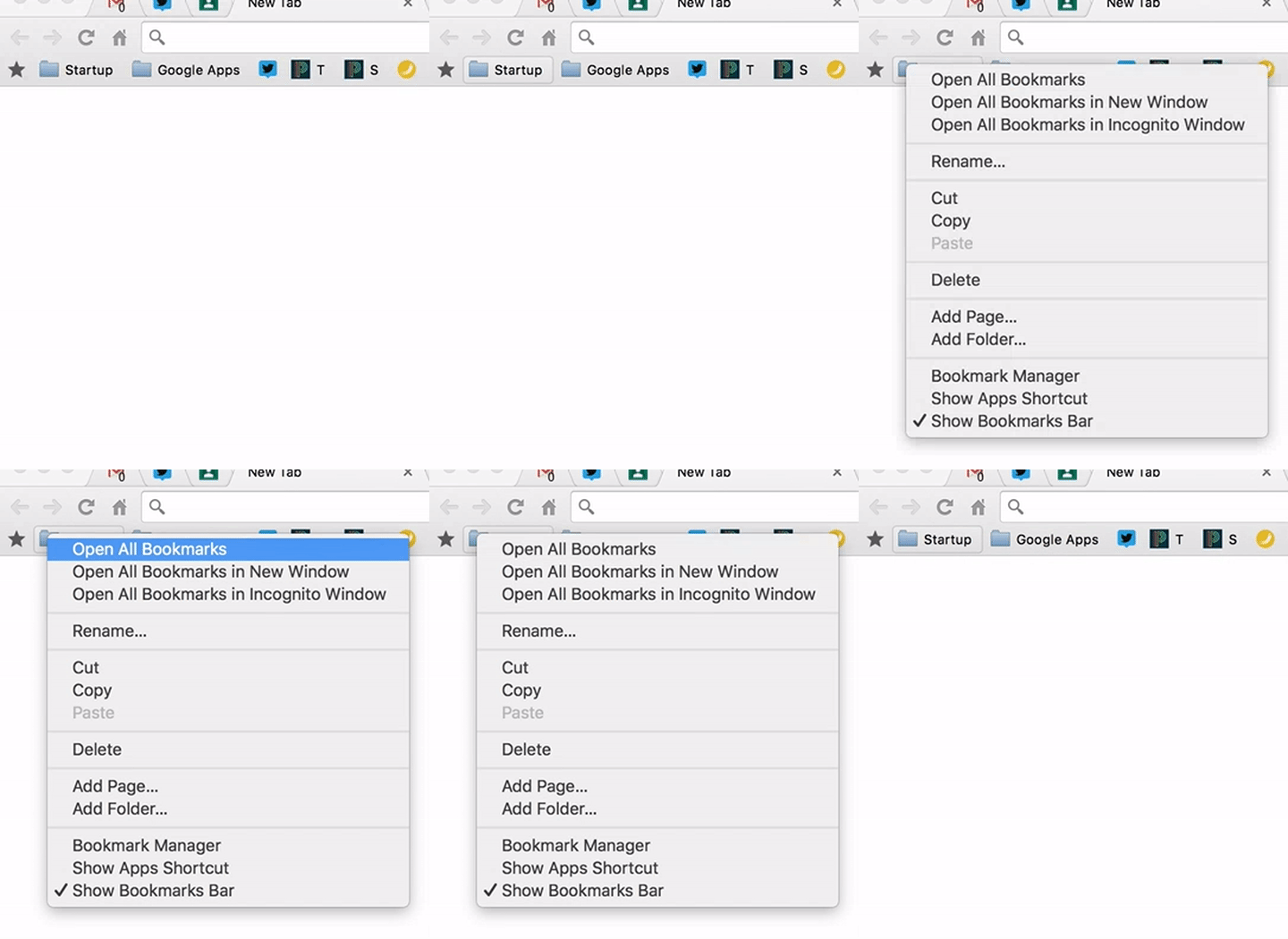
Signing on to multiple devices each day can be tiresome especially because I use the same 9 or 10 tabs everywhere I go. I've used TabCloud or Chrome's ability to open up tabs on startup but I have found them to be less reliable than a Bookmark Folder. If you right click a bookmark folder and choose "Open All Bookmarks," every bookmark in the folder will open up in your current window. This is a great way to pull up Gmail, Drive, Calendar, etc. quickly. Just put all of your popular sites in the folder and you are set to go!

Tuesday, April 19, 2016
5 Chrome Tips You Should Know
It seems like the number of things you can do in the Chrome browser are endless. But here are 5 that I use often and few people seem to know about.


10 Useful Chrome Extensions
Chrome extensions can save you time and make you more productive during your day. But with an endless number available, which ones should you use? Here are 10 of my favorite extensions for Chrome.


Friday, May 2, 2014
Three Extensions Running Behind the Scenes
Extensions are a great addition to Chrome allowing you to shorten URLs, take screen shots and even condense text (I love TLDR). But there are extensions that can run in the background without you even know it. These extension can make Chrome a better experience for the user. Here are my top three that I have running all the time.
1) Attachment Icons for Gmail (Link)
Attachment Icons for Gmail is a very basic idea but very helpful. What this extension does is that it changes the paperclip icon in Gmail (that stands for attachment) to a picture of what the attachment really is. For example if an email has a pdf attachment the icon is the not paper clip but the icon for pdf. I it does not recognize the file it will default back to the paper clip icon.

2) App Launcher Customizer for Google (Link)
App Launcher Customizer allows you to customize your Google Apps menu so that only the apps you want appear in the menu. You can add or remove any apps you need to.
 I really like quick access to YouTube and Google+. With App Launcher I can have those easily accessible from my apps menu.
3) Momentum (Link)
Momentum is a simple extension that creates an eye pleasing image when you open a new tab instead of the default "New Tab" screen.

1) Attachment Icons for Gmail (Link)
Attachment Icons for Gmail is a very basic idea but very helpful. What this extension does is that it changes the paperclip icon in Gmail (that stands for attachment) to a picture of what the attachment really is. For example if an email has a pdf attachment the icon is the not paper clip but the icon for pdf. I it does not recognize the file it will default back to the paper clip icon.
2) App Launcher Customizer for Google (Link)
App Launcher Customizer allows you to customize your Google Apps menu so that only the apps you want appear in the menu. You can add or remove any apps you need to.
3) Momentum (Link)
Momentum is a simple extension that creates an eye pleasing image when you open a new tab instead of the default "New Tab" screen.
Along with a new image, Momentum gives you the current time and your local weather.
Friday, March 21, 2014
Consolidate Your Bookmarks

If you are anything like me your bookmarks bar in chrome can fill up very fast. But then, at a Google conference, one of the presenters showed how to make your bookmarks ICONS instead of an "icon and name." This works great for bookmarks that have their own distinct icon like Gmail, Drive and PowerTeacher.

Here is the short version: Right click a bookmark, choose "edit" and delete the name. Click "save" and you are done. For bookmarks that have the same icon attach a letter in the name for the bookmark. For example, for PowerTeacher I have the icon and the letter "T" for my bookmark and for PowerSchool I have the icon and the letter "S." Great way to save space and to have access to many more bookmarks than I had before.
Subscribe to:
Posts (Atom)