Wednesday, April 30, 2014

Google Drive Shared Folders: Making Annotated Notes Easy to Share

When I first started teaching one of the hardest things to do was to get students that were absent material, such as annotated notes from class, before coming back to class.  With the use of Google Drive and sharing my folders I have a 3 step daily routine that keeps all of my classroom material up to date on my website.  A must-have is to embed your class shared folder onto your website!  It updates automatically when you add something to it.

1)  Create a note sheet and save it as a pdf to my class shared folder.


2)  While in class I use Smart Notebook or my iPad to annotate on the notes
  • Smart Notebook:  I "print" my note sheet to Smart Notebook via the Smart Notebook Print Capture,  and then annotate on the notes throughout class.


  • iPad:  For using my iPad in class I use the program Good Notes.  Good Notes allows you to annotate over a pdf on your iPad.  Good Notes also allows you to link your Google Drive account to it.  I pull up the non-annotated pdf version of my notes from my Drive and project my iPad's screen through the projector in my room by using Reflector. This is extremely helpful because it lets me circulate the room while I annotate on the iPad and take pictures of student work as they complete problems.


3)  Post the notes to my shared Drive folder.  

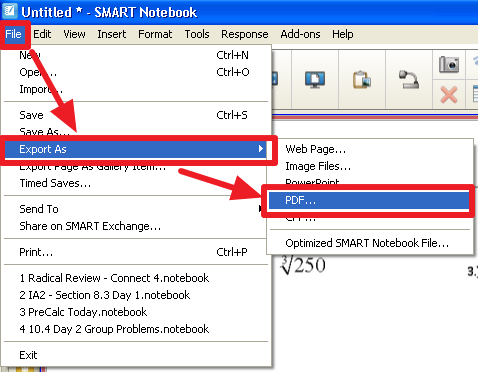
  • Smart Notebook:  I then export the notes as a pdf.  If you have Google Drive installed on the computer you can export this pdf straight to your class shared folder.
                           

  • iPad:  The best part of Good Notes is that it will let you export your annotated notes right back to your Google Drive class folder.


Now in my class folder I have a blank copy of the notes and an annotated copy.  This has been such a time saver and it has allowed my students to not fall behind while not in class.


Tuesday, April 29, 2014

QR Codes: An Integral Part of My Classroom

QR codes were introduced to me at the Midwest Google Summit this past November.  Since then their integration in to my classroom has changed the way I have students access material in my Google Drive.  I use the goo.gl shortener extension (link to chrome webstore) to create QR codes to different URLs I want my students to go to.

I wanted to share the THREE main ways I use QR codes in my class

1) QR Codes to My Flipped Classroom Google Forms.
For flipping my class, I supply my students with a guided note sheet to complete with the video.  Before QR codes the students had to navigate to my website, but now they can scan the QR code on the notes and it will bring them right to the Google Form with the video and questions.


2)  QR Codes to Answer Keys for Homework.
I like for my students to have access to the answer keys while they complete their homework to check their work.  However many students did not want to take the time to navigate to my webpage to find the keys.  Instead I create a QR code and put that on their homework so when they are done they can scan the code and check their answers right away.


3)  QR Code For a Bell Ringer
As soon as the students walk in the door to my classroom I want them to be engaged so I have them fill out a Google Form several times a week to see what they thought of the homework.  Instead of giving them a URL, I project a QR Code linked to a Google Form on the front board.  They then scan the QR code and they have a few minutes to complete it while I check their homework.  I find that this is a great time for me to check their homework instead of wasting time during class to do it.  It also gives us a chance to look at the responses and discuss them as a class.

Monday, April 28, 2014

Google Tasks: The Way I Stay Organized

Within a normal school day I feel like I have countless things to do and it is hard to keep them organized.  I used to rely on post-it notes but soon my desk was overrun with yellow pieces of paper.  Then came my discovery of Google Tasks.  Google Tasks was a lab within Gmail that Google has made an official feature of Google Apps.  To access your tasks, while in Gmail, click "Mail" in the top left hand corner and tasks will be one of the drop down options.

This will bring up a task list that will be part of your Gmail screen.

You can now add items that you need to complete in the future.  You can also make multiple list to keep things more organized. 

Here are a few benefits to using Google Tasks:
  • When you complete a task, check the checkbox and it crosses the tasks off your list.  Gives a feeling of accomplishment!
  • Integrates with your Google Calendar - When you create a task, you can give it a date and that task will be added to your Google Calendar.


  • View your tasks in Gmail AND Google Calendar.


  • Add tasks on the go with an app.  I use the free app GoTasks on my iPhone and any task I add is automatically added to my Google Tasks list.  Including dates!!


Socrative: My Goto For Informal Assessments

Informal assessments are one of the things I use chromebooks in my classroom for.  And Socrative is the one I use the most.  I started using Socrative about a year ago and found it to be very user friendly and it worked on all internet capable devices (phones, chromebooks, etc.).  With the additional feature of adding images, Socrative has become extremely useful to me in my math classroom.  The presentation below is a quick guide to creating an account and how to initiate quick questions.  I plan on putting together an more advanced tutorial in the future.


Link to the Google Document of the tutorial.  Feel free to make a copy.  Thanks.
http://goo.gl/P4msas

Friday, April 25, 2014

Search Google Drive By File Type

Sometimes I find the need to look at every form I have created.  Instead of going through all of my folders in my Drive there is an easier way to pull up a specific file type.  Click the downward facing arrow in the search box while in your Drive and it will bring up a list of file types.  Click the file type you want to search for and Drive will pull up every file that matches that criteria.


This is also helpful for searching for a file by specific file types by name.


Don't Forget to Install Google Drive Onto Your Computer

It took 6 months of using Google Drive for someone to tell me that you can install the application onto your PC or Mac for quicker access to your Drive folders.  Installing the Google Drive application actually puts Drive into your list of drives as if it is one of your network drives.

Here are some of the benefits of using this as a way to manage your Drive files:
  • You can share files right from the finder window by right clicking a file
  • You can save a file directly to drive from a program (such as Word)
  • If you open a Word document from your Drive window, edit it and then save it the file will be automatically updated in your Google Drive.  It will also keep a record of revisions to that document if you right click the file from WEB version of Drive.
  • Export annotated notes from Smart Notebook as a pdf straight to Drive for students


Thursday, April 24, 2014

Pre-filled Google Forms Mean Less Mistakes

Google Forms is a great way to collect data, especially email address at the beginning of the year.  The problem my students were having was typing in .com instead of .org or just spelling the domain of their email address wrong.  Lucky for me and my students there is a way to have a Google Form already filled in.  For example, when the students go to the form it already has @school.org filled in.


To create pre-filled form open your form and click on "Responses" and choose "Get pre-filled URL."

This will bring up a version of your form.  Input what you would like to be pre-filled in and then click submit.  The new URL at the top of the page is the URL for the pre-filled out version of your form.  That is the URL you give to your students.